SSH Keys and SFTP Access
Document Metadata
Category: Profile → SSH Keys & SFTP Access
Audience: Administrators, Developers, DevOps Engineers, System Integrators, Support Teams
Difficulty: Beginner to Intermediate
Time Required: 10–15 minutes
Prerequisites: A ConnexCS account, appropriate permissions to manage SSH Keys and enable SFTP access, and an SFTP client (such as WinSCP, FileZilla, Cyberduck, MobaXterm, or OpenSSH) if connecting via SFTP.
Related Topics: Document Guide — documentation standards, File System — managing stored files, Call Recordings, Voicemail, Audio Files, Profile Settings.
Next Steps: Configure an SSH public key, enable SFTP access, connect using your preferred authentication method, and securely manage files stored within the ConnexCS File System.
Overview
Secure file access is essential for managing recordings, audio files, backups, and other resources within the ConnexCS platform.
ConnexCS provides SSH Keys for secure authentication and SFTP (Secure File Transfer Protocol) for encrypted file transfers.
The SSH Keys feature enables administrators and users to register trusted public keys, allowing passwordless authentication for supported services and integrations. Key-based authentication offers stronger security than traditional passwords while simplifying automated workflows and system integrations.
SFTP Access allows users to securely connect to the ConnexCS File System using an SFTP client to upload, download, modify, and manage files. It supports both username/password and SSH key authentication, making it suitable for interactive use as well as automated scripts and third-party applications.
SSH Keys
Overview
The SSH (Secure Shell) Keys section allows you to securely manage the SSH public keys associated with your ConnexCS account.
The SSH keys provide a secure alternative to password-based authentication by using a cryptographic key pair to verify your identity.
Adding your public SSH key enables supported ConnexCS services and integrations to authenticate your account without transmitting passwords. This improves security while simplifying access for automated tools, scripts, and development workflows.
Administrators can add, review, and remove SSH keys as required, ensuring that only trusted devices and users have authenticated access.
Benefits
Using SSH keys offers several advantages over traditional password authentication:
- Strong cryptographic authentication.
- Eliminates the need to transmit or store passwords.
- Supports secure automation and integrations.
- Reduces the risk of credential theft and brute-force attacks.
- Allows multiple trusted devices to authenticate independently.
- Simplifies access management by allowing individual keys to be revoked without affecting other users or systems.
Key Features
The SSH Keys section enables you to:
- Add new SSH public keys.
- View all SSH keys associated with your account.
- Remove keys that are no longer required.
- Manage authentication for supported ConnexCS services.
- Maintain secure access using key-based authentication.
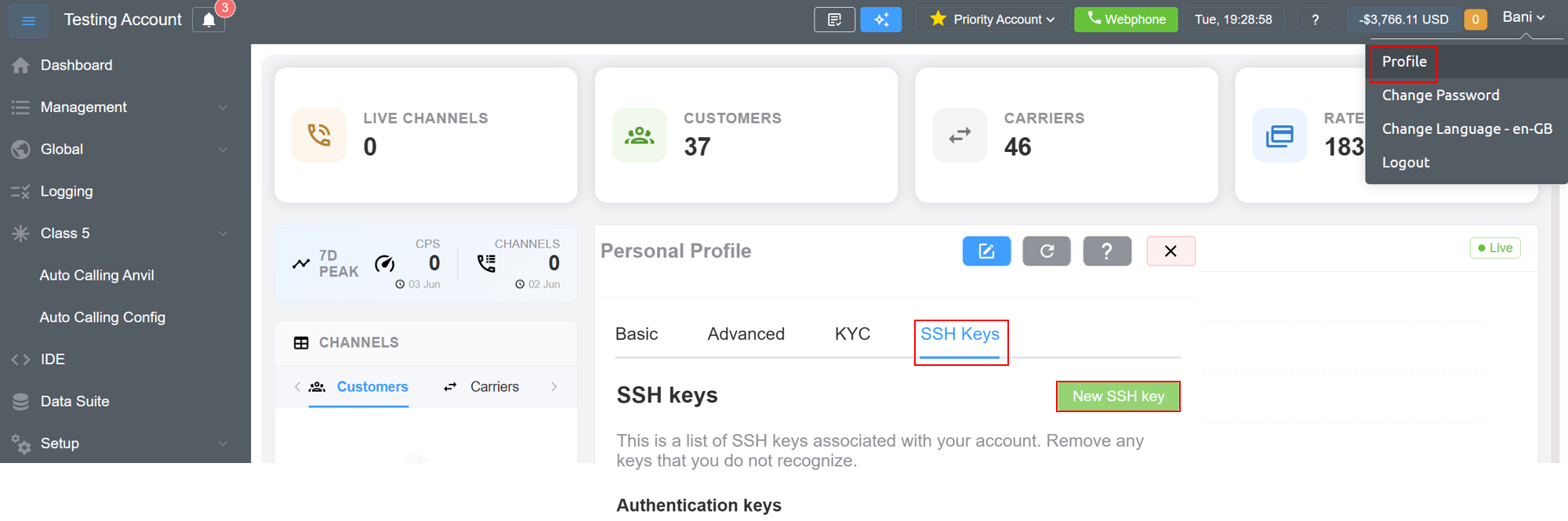
To authorize/configure an SSH key:
- Login to your account.
- Navigate to
Profile :material-menu-right: SSH Keys. - Create a
New SSH Key.
-
Enter
KeyDetails:- Key Name (Identifier)
- SSH Public Key
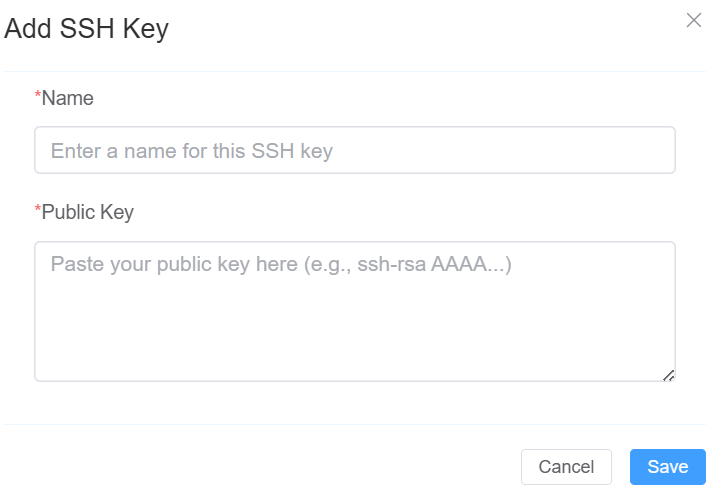
Only the Public Key should be uploaded. Never upload your Private Key.
-
Click on
Save. After saving, the SSH key becomes available for SFTP authentication.
Available Actions
| Action | Description |
|---|---|
| New SSH Key | Add a new SSH public key to your account. |
| View Keys | Display all SSH keys currently associated with your account. |
| Remove Key | Delete an SSH key that is no longer required or trusted. |
Removing an SSH Key
If a device is retired, replaced, or compromised, remove its associated SSH key immediately.
To remove a key:
- Locate the key in the list.
- Click Remove Key.
- Confirm the deletion.
Once removed, that key can no longer authenticate with supported ConnexCS services.
Security Best Practices
To maintain account security:
- Only add SSH keys from trusted users and devices.
- Never upload or share your private SSH key.
- Remove unused, expired, or compromised keys immediately.
- Review configured keys periodically.
- Use modern key algorithms such as Ed25519 whenever possible.
- Generate separate SSH keys for different devices instead of sharing a single key.
SFTP Access
Overview
SFTP (Secure File Transfer Protocol) allows users to securely access and manage files stored within the ConnexCS File System.
Using an SFTP client, users can connect directly to their ConnexCS storage and perform file operations such as:
- Downloading call recordings
- Accessing voicemail files
- Managing uploaded audio files
- Retrieving files from the File System
- Uploading, modifying, or deleting files (subject to permissions)
- Performing bulk file transfers
- Automating backups and integrations
SFTP access provides an alternative to the web-based File Manager and is particularly useful for bulk file operations, automated workflows, and third-party integrations.
Prerequisites
Before connecting via SFTP:
- SFTP access must be enabled for your account.
- You must have a valid ConnexCS account.
- An SFTP client must be installed.
Supported clients include:
- WinSCP
- MobaXterm
- FileZilla
- Cyberduck
- OpenSSH Command Line
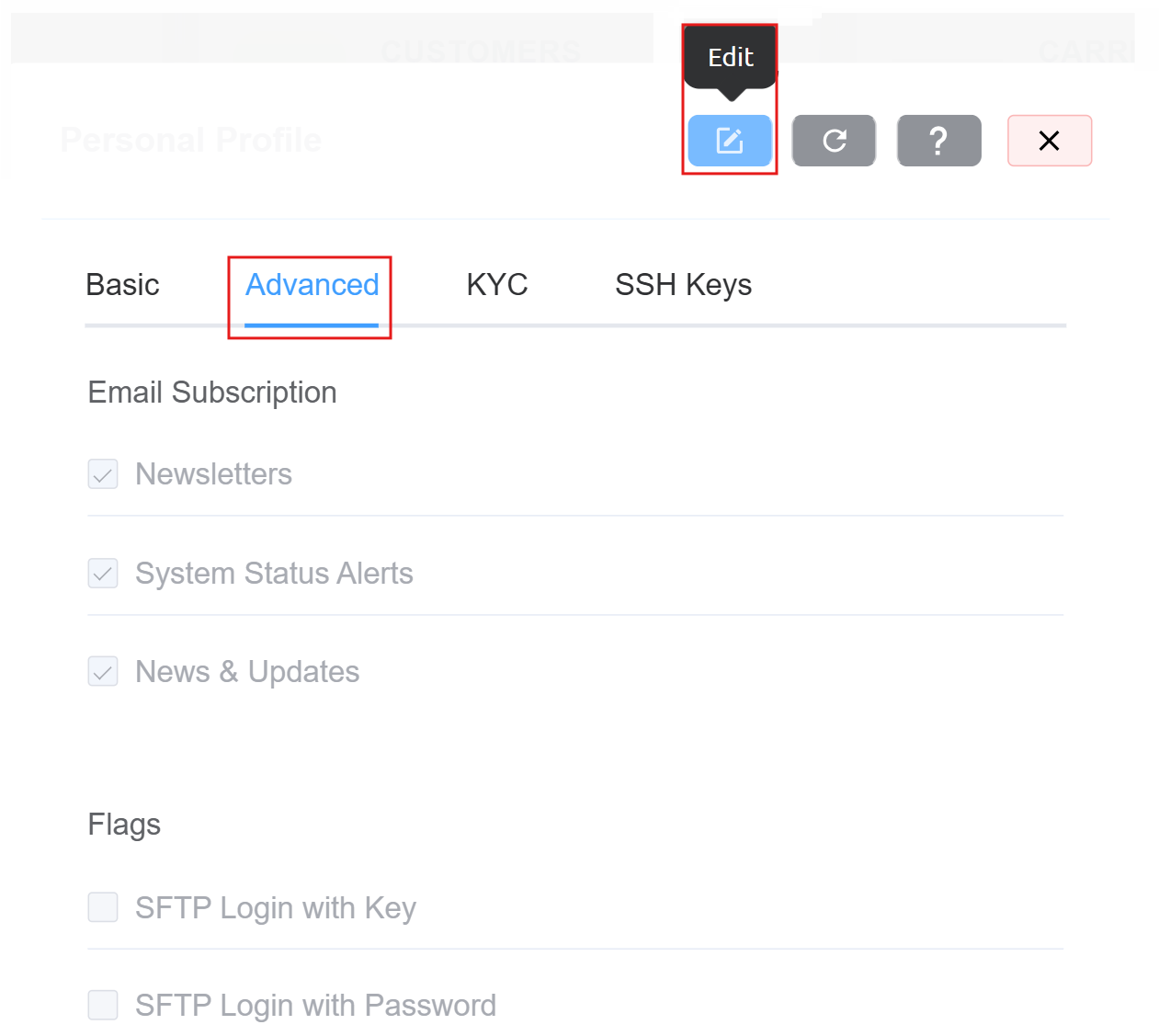
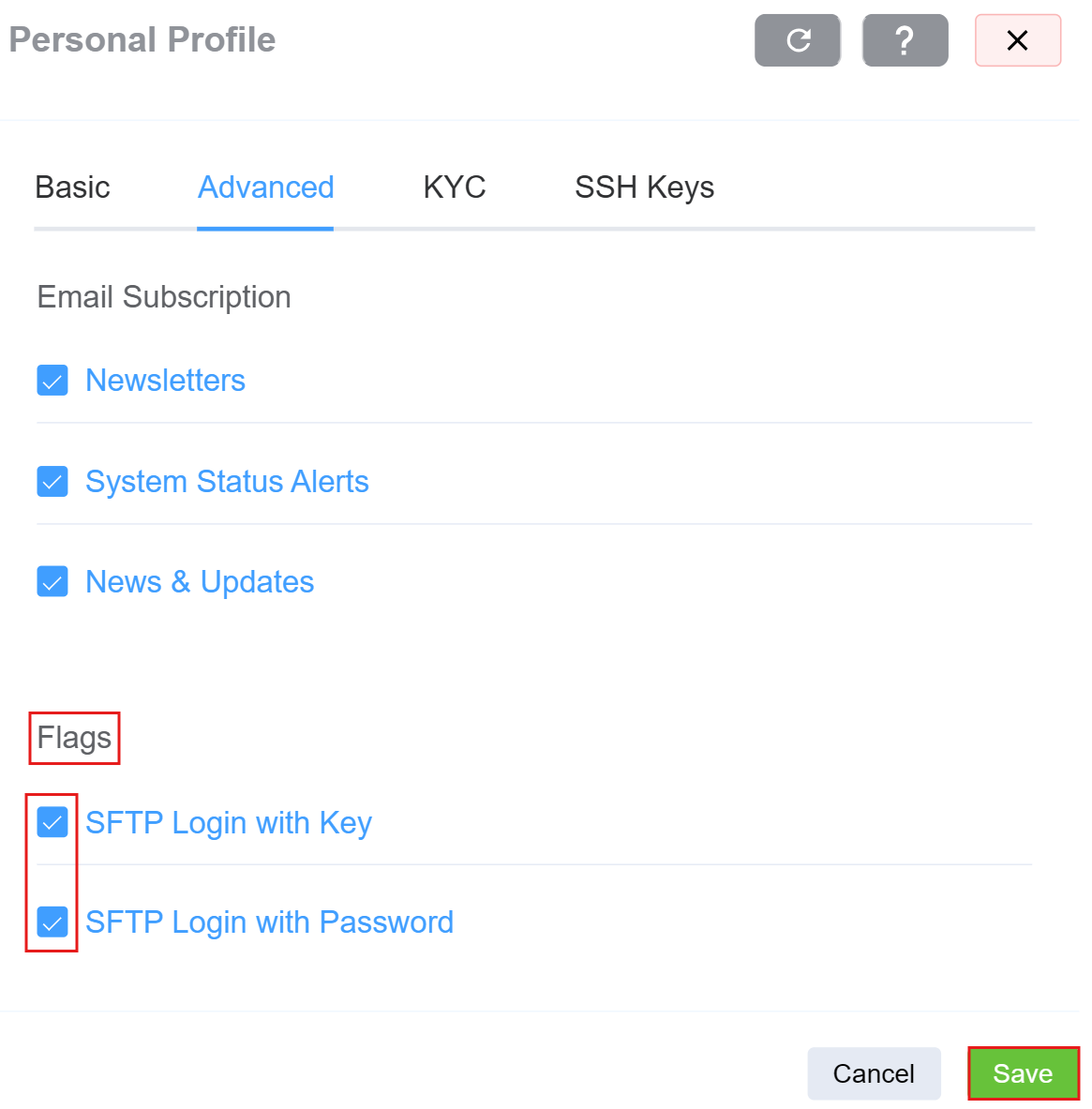
How to enable SFTP access?
- Login to your account.
- Navigate to
Profile :material-menu-right: Advanced. Click onEdit.
- Enable the
Flags. ClickSave.
Authentication Methods
ConnexCS supports the following authentication methods:
Username and Password
Users can authenticate using the same credentials used to log in to their ConnexCS account.
SSH Key Authentication
Users can optionally authenticate using SSH public/private key pairs.
SSH key authentication provides enhanced security and eliminates the need to enter passwords.
Configuring SSH Keys
To authorize an SSH key:
- Login to your account.
- Navigate to
Profile :material-menu-right: SSH Keys. - Create a
New SSH Key.
-
Enter
KeyDetails:- Key Name (Identifier)
- SSH Public Key
Only the Public Key should be uploaded. Never upload your Private Key.
-
Click on
Save. After saving, the SSH key becomes available for SFTP authentication.
SFTP Connection Details
Use the following connection settings:
| Parameter | Value |
|---|---|
| Protocol | SFTP |
| Host | sftp.connexcs.com |
| Port | 22 |
| Username | Enter the username (ConnexCS email) you use to sign in to the ConnexCS Control Panel |
| Authentication | Password or SSH Key |
Connecting Using Username and Password
- Open your preferred SFTP client.
-
Configure the connection:
Setting Value Host sftp.connexcs.com Port 22 Username Your ConnexCS Username (email) Password Your ConnexCS Password -
Click Connect. The system will authenticate using your standard ConnexCS login credentials.
Connecting Using SSH Keys
- Upload your Public SSH Key to ConnexCS.
- Open your preferred SFTP client.
-
Configure:
Setting Value Host sftp.connexcs.com Port 22 Username Your ConnexCS Username (email) Authentication SSH Key -
Select the corresponding Private Key from your local machine.
- Click Connect.